
Touch Functional Test #
The ESP32 HMI uses a 7” TFT with a resistive touch display. After you set up the display, you may need to calibrate the touch feature for better accuracy. You can calibrate the display’s touch feature in just a few simple steps.
First, we need to handle touch input. This code reads touch data from the XPT2046 touchscreen controller and outputs the touch coordinates and pressure level to the serial monitor for debugging. Developers commonly use the XPT2046 in resistive touchscreen displays.
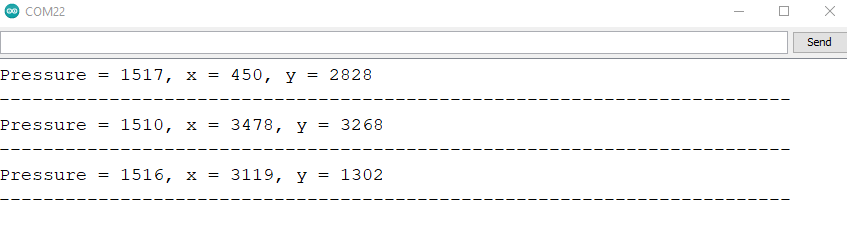
Next, accurately touch each of the four corners. The serial monitor will display the pressure and corresponding coordinates. You can calibrate the display based on these values.
Here’s a breakdown of what each part of the code does,
Include Libraries: The code includes the necessary libraries for the XPT2046 touchscreen (XPT2046_Touchscreen) and the SPI communication (SPI).
#include <XPT2046_Touchscreen.h>
#include <SPI.h>
Define Pins: It defines the pins used for SPI communication (MOSI_PIN, MISO_PIN, SCK_PIN) and the chip select pin (CS_PIN) for the touchscreen. Additionally, it defines the touch interrupt pin (TIRQ_PIN), which is used for interrupt-based touch detection.
// MOSI=11, MISO=12, SCK=13

#define CS_PIN  39
#define MOSI_PIN 11  // Define your custom MOSI pin
#define MISO_PIN 13  // Define your custom MISO pin
#define SCK_PIN  12  // Define your custom SCK pin

// The TIRQ interrupt signal must be used for this example.
#define TIRQ_PIN  42
Touchscreen Object Initialization: This step initializes the touchscreen object (ts) with the defined chip select pin and the touch interrupt pin. Optionally, it can specify an alternate SPI interface (SPI1) if needed. The code sets the touchscreen rotation to 2, which corresponds to landscape mode.
XPT2046_Touchscreen ts(CS_PIN,TIRQ_PIN); // Param 2 - Touch IRQ Pin - interrupt enabled pollingSetup Function: #
- It initializes serial communication for debugging purposes.
- It initializes the SPI communication.
- It initializes the touchscreen.
- It sets the rotation of the touchscreen.
void setup() {
  Serial.begin(115200);
  SPI.begin(SCK_PIN, MISO_PIN, MOSI_PIN, CS_PIN);

  ts.begin();
  //ts.begin(SPI1); // use alternate SPI port
  ts.setRotation(2);
  //  while (!Serial && (millis() <= 1000));
}
Loop Function: #
- It continuously checks if there’s a touch detected using the
tirqTouched()function, which relies on the touch interrupt pin for faster detection. - If a touch is detected (
if (ts.touched())), it retrieves the touch coordinates using thegetPoint()function. - It prints the pressure, x-coordinate, and y-coordinate of the touch point to the serial monitor.
- It introduces a delay of 100 milliseconds before the next iteration.
void loop() {

  // tirqTouched() is much faster than touched().For projects where other SPI chips
  // or other time sensitive tasks are added to loop(), using tirqTouched() can greatly
  // reduce the delay added to loop() when the screen has not been touched.
  if (ts.tirqTouched()) {
    if (ts.touched()) {
      TS_Point p = ts.getPoint();
      Serial.print("Pressure = ");
      Serial.print(p.z);
      Serial.print(", x = ");
      Serial.print(p.x);
      Serial.print(", y = ");
      Serial.print(p.y);
      delay(100);
      Serial.println();
      Serial.println("--------------------------------------------------------");
    }
  }
}
When you touch the display, the serial monitor displays the corresponding coordinates.
Touchscreen Calibration Process #
Access the relevant calibration code. Modify parameters like TOUCH_MAP_X1, TOUCH_MAP_X2, TOUCH_MAP_Y1, and TOUCH_MAP_Y2 in the touch.h code using the values from the touch functional code, starting with default values and making incremental adjustments.
Guide yourself through touching specific points and iteratively adjusting calibration values until reported coordinates align with touched points. Consider factors like rotation and axis swapping (TOUCH_SWAP_XY). Document final calibration values in the code and provide visual feedback for touch detection.
Calibrate the touchscreen using calibration libraries and parts related to touch calibration in the code.
- #define TOUCH_XPT2046
- #define TOUCH_XPT2046_SCK 12
- #define TOUCH_XPT2046_MISO 13
- #define TOUCH_XPT2046_MOSI 11
- #define TOUCH_XPT2046_CS 39
- #define TOUCH_XPT2046_INT 42
- #define TOUCH_XPT2046_ROTATION 2
- #define TOUCH_MAP_X1 270
- #define TOUCH_MAP_X2 3800
- #define TOUCH_MAP_Y1 3600
- #define TOUCH_MAP_Y2 330
it defines mapping parameters for the X and Y axes along with other configuration settings such as pins.
The touch calibration code initializes the system, handles touch events, and includes functions to check whether the screen is touched or released. The selected touch library determines the specific implementation details.
- It defines specific configurations for the XPT2046 touch controller, which is selected by uncommenting
TOUCH_XPT2046. Various pin configurations and mapping values for touch input are specified.
/* uncomment for XPT2046 */
 #define TOUCH_XPT2046
 #define TOUCH_XPT2046_SCK 12
 #define TOUCH_XPT2046_MISO 13
 #define TOUCH_XPT2046_MOSI 11
 #define TOUCH_XPT2046_CS 39
 #define TOUCH_XPT2046_INT 42
 #define TOUCH_XPT2046_ROTATION 2
 #define TOUCH_MAP_X1 270
 #define TOUCH_MAP_X2 3800
 #define TOUCH_MAP_Y1 3600
 #define TOUCH_MAP_Y2 330