

Power Source Selection #
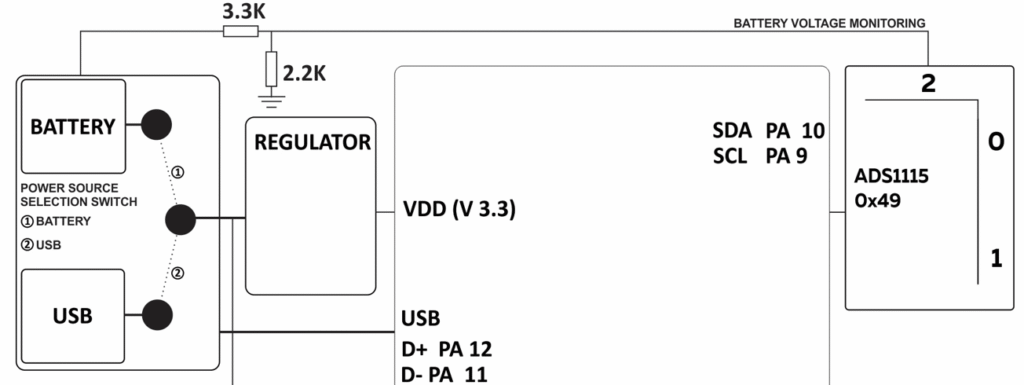
The device includes a built-in battery designed for low-power operation. During programming and testing, you can switch the power source to USB to conserve battery power for actual use. To select USB power, set the on-board jumper to position 2.
Battery Monitoring #
The battery is fed to the Port 2 of ADS1115 16 bit ADC, through a voltage divider as shown in the picture below. The device can calculate the battery voltage and use it for operation and alerting functions.
Programming the Device #
NORVI EC-M12-BC-C6-C-A uses the STM32L Series microcontroller STM32L072CZ, which is designed for low-power applications. You can program this microcontroller using the Arduino IDE or any other IDE that supports STM32 microcontrollers.
The board includes SWD programming Pins for connection with an ST-Link and USB Port for Serial Debugging.
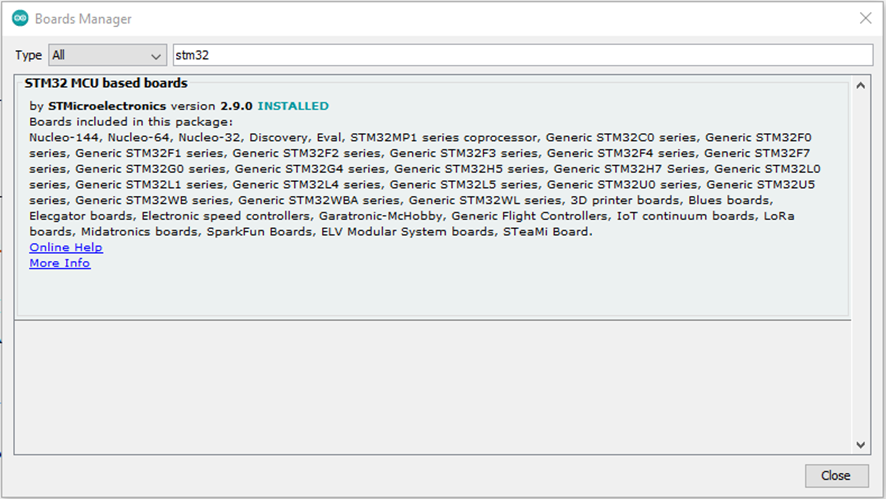
To configure the Arduino IDE for STM32L, install the STM32 MCU Based Boards package from the Arduino Boards Manager.
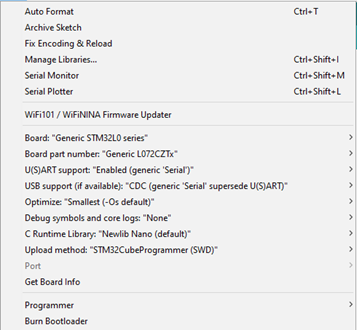
Then setup the board setting from tools as the below Figure 5. In the Arduino IDE, enable Generic Serial and CDC to get serial monitor output, as Generic Serial overrides the standard UART.
Board: Generic STM32L0 Series
Board Part number: Generic L072CZTx
U(S)ART support: Enabled generic Serial)
Compiling and Uploading Code for STM32L with Arduino IDE #
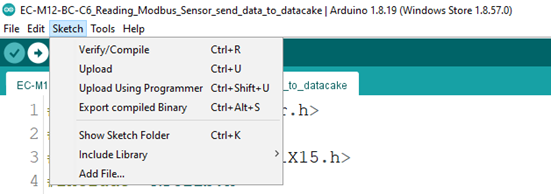
You can download the compiled binary from the Arduino IDE by selecting Sketch > Export Compiled Binary. After the process completes, retrieve the binary file from the program’s saved location.
You can upload the exported binary file using an ST-Link Programmer. Connect GROUND, CLK, DIO, and RESET pins to the ST-Link Programmer.
The complete test program for the product is available on our GitHub repository.
Utilizing Analog Inputs #
The analog inputs are converted to digital through ADS1115 16bit ADC. ADS1115 provides internal comparators with a digital alarm output, which you can set the ADS1115 to monitor an analog input, while the other peripherals are on sleep. For the reading operation of ADS1115, it is available on I2C bus at the address 0x49.
You can use the device’s power output to supply a sensor or an external device. Configure the output voltage as 12V, 5V, or 3.3V according to your requirement.
Connect the sensor output to A1 or A2 analog input, using the device’s reference GROUND.
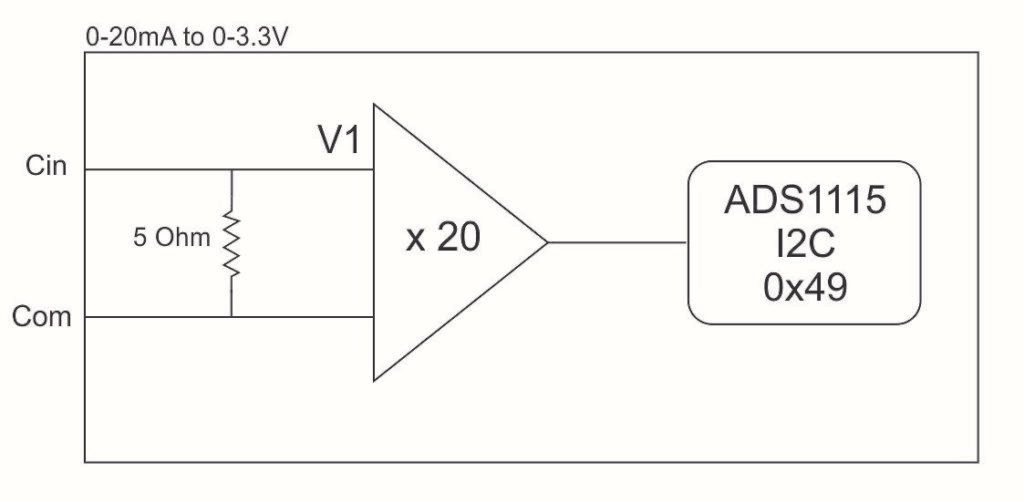
4 – 20mA Analog Input – Internal Attenuation #
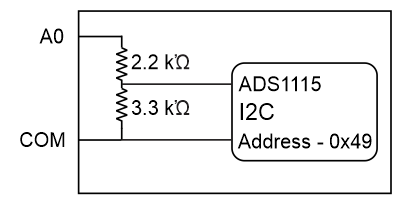
0 – 10V DC Analog Input – Internal Attenuation #
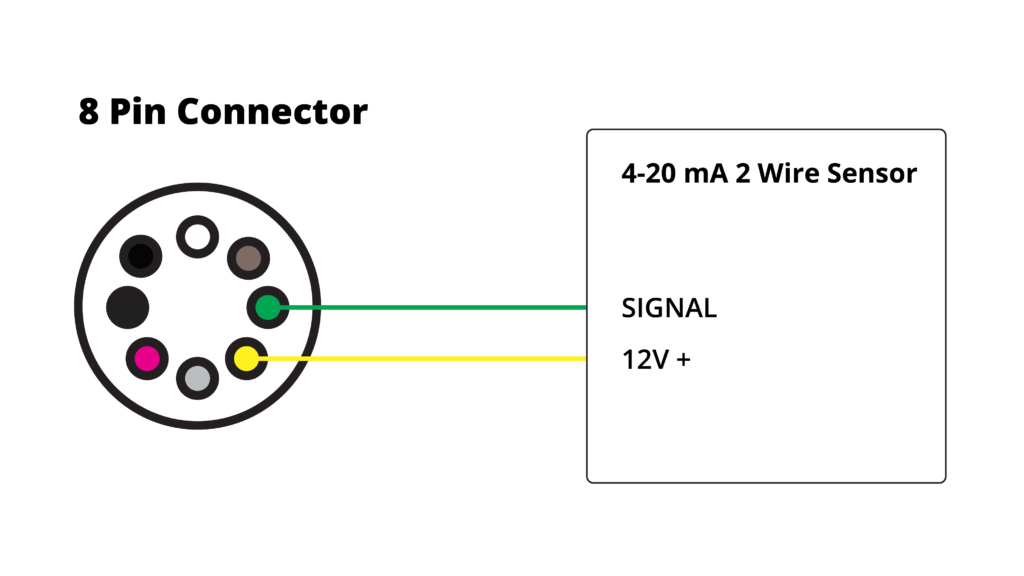
2-Wire 4–20 mA Sensor #
The 2-wire sensor is loop-powered, using the same wires for both power and signal. Connect the sensor +V to the EC-M12-BC-C6-C-A +12 V output and the sensor signal to the device’s 4–20 mA input pin. The EC-M12-BC-C6-C-A completes the loop internally, so the sensor ground pin is not needed. The device reads the 4–20 mA current directly.
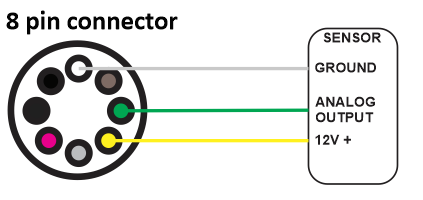
3-Wire 4–20 mA Sensor #
The 3-wire sensor has separate power and signal lines. Connect the sensor +V to the EC-M12-BC-C6-C-A +12 V output, GND to EC-M12 ground, and the signal to EC-M12-BC-C6-C-A 4–20 mA input pin. The sensor is powered independently, and the 4–20 mA current is read directly by the device.
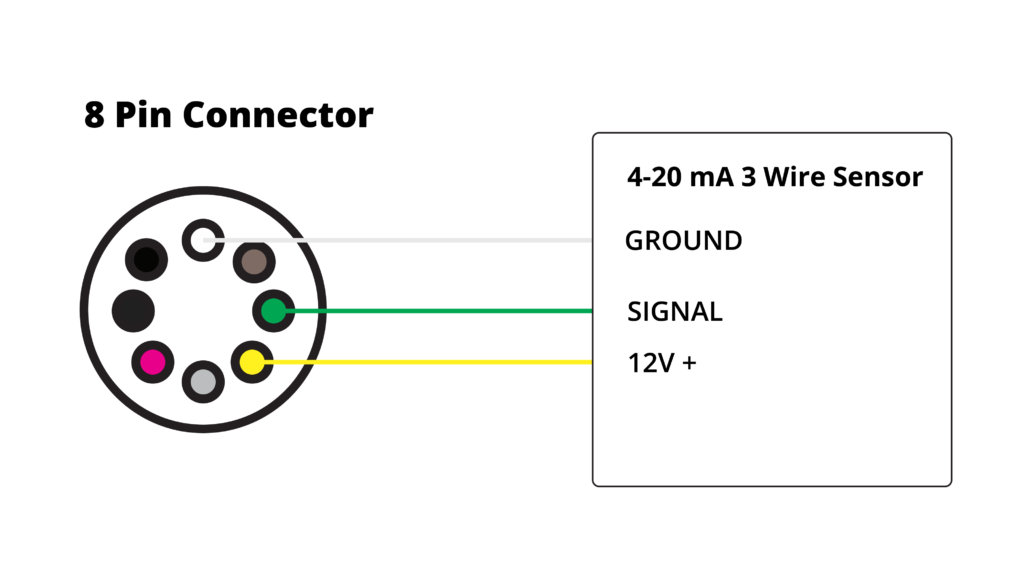
| Feature | 2-Wire Sensor | 3-Wire Sensor |
|---|---|---|
| Power Source | Loop-powered (uses signal wires) | Separate +V/GND |
| EC-M12 Pins Used | +12 V, 4–20 mA input | +12 V, GND, 4–20 mA input |
| Signal Pin Connection | Sensor signal → 4–20 mA input | Sensor signal → 4–20 mA input |
| Ground Pin | No need | Connect sensor GND → EC-M12 GND |
| Wiring Complexity | Simple, 2 wires only | Slightly more complex, 3 wires |
| Reading via ADC | Direct, EC-M12-BC-C6-C-A handles loop | Direct, separate signal easier |
| Typical Use | Low-power transmitters | Sensors needing more internal power or electronics |
Arduino Example of Reading Analog Input #
#include <Adafruit_ADS1X15.h>
#define BOOST_EN PA4
Adafruit_ADS1115 ads1;
const float V_Factor = 3.3 / 1.65;
const float mA_Factor = 4.096 / 3269.826;
void setup() {
  Serial.begin(9600);
  pinMode(BOOST_EN, OUTPUT);
  Wire2.begin();
  delay(1000);
  if (!ads1.begin(0x49)) {
    Serial.println("Failed to initialize ADS 1 .");
    while (1)
      ;
  }
  ads1.setGain(GAIN_ONE);  // 1x gain +/- 4.096V  (1 bit = 0.125mV)
}

void loop() {
  digitalWrite(BOOST_EN, HIGH);
  float current0 = ads1.readADC_SingleEnded(1) * mA_Factor;
  float current1 = ads1.readADC_SingleEnded(0) * mA_Factor;
  Serial.print("Current 0: ");
  Serial.print(current0);
  Serial.println(" mA");
  Serial.print("Current 1: ");
  Serial.print(current1);
  Serial.println(" mA");
  digitalWrite(BOOST_EN, HIGH);
  delay(1000);
}
RS-485 Communication #
The device uses the SN65HVD72 RS-485 transceiver for communication. You can implement MODBUS RTU or any other RS-485–based protocol with this transceiver.
| Driver | SN65HVD72 |
| UART RX | PB7 |
| UART TX | PB6 |
| Flow Control | PB5 |
RS-485 Wiring #
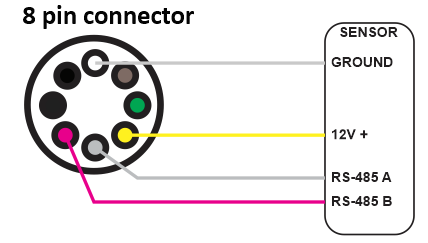
Programming RS-485 #
The example code below initialized the UART Module for RS-485 transceiver and Sends the message “RS485 01 SUCCESS” over RS-485 bus. After that the module is set to receiving mode to receive messages.
#define RS485_RX PB7
#define RS485_TX PB6
#define FC PB5

HardwareSerial Serial1(RS485_RX, RS485_TX);

void setup() {

  Serial.begin(9600);
  delay(500);
  pinMode(FC, OUTPUT);

  Serial1.begin(9600);
}
void loop() {
  digitalWrite(FC, HIGH);               // Make FLOW CONTROL pin HIGH
  Serial1.println("RS485 01 SUCCESS");  // Send RS485 SUCCESS serially
  delay(100);                           // Wait for transmission of data
  digitalWrite(FC, LOW);                // Receiving mode ON
  delay(100);

  while (Serial1.available()) {  // Check if data is available
    char c = Serial1.read();     // Read data from RS485
    Serial.write(c);             // Print data on serial monitor
  }

  delay(100);
}
Sensor Supply Voltage Output #
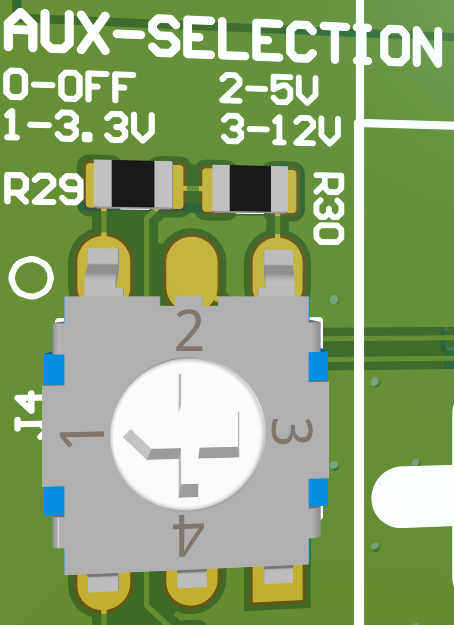
EC-M12-BC-C6 Series includes a supply voltage output to power external sensors or devices. This output is switchable from the Program to Save power. The output can deliver upto 200mA of current.
The output voltage can be selected between 3.3V , 5V and 12V.
Enabling Power Output from firmware #
The device connects the output enable pin to GPIO PA4 on the STM32. Setting PA4 high turns the output ON.
The program below toggles the output ON and OFF every 1 second.
#define BOOST_EN PA4


void setup() {
  pinMode(BOOST_EN, OUTPUT);
  digitalWrite(BOOST_EN, LOW);
}

void loop() {
  digitalWrite(BOOST_EN, HIGH);
  delay(1000);
  digitalWrite(BOOST_EN, LOW);
  delay(1000);
}
MicroSD Card Support #
The microSD card connects to the STM32’s SPI bus, with a GPIO controlling its power. This setup cuts off power to the microSD card when the device enters sleep mode. Below example code shows, to enable power to the microSD Card and read the data.
#define MISO_PIN PA6
#define MOSI_PIN PA7
#define SCLK_PIN PA5


#define SD_chipSelect PA0
#define SD_PWR PB0


Sd2Card card;
SdVolume volume;
SdFile root;


void setup() {
  Serial.begin(9600);
  delay(100);
  pinMode(SD_PWR, OUTPUT);


  Serial.print("\nInitializing SD card...");
  if (!card.init(SPI_HALF_SPEED, SD_chipSelect)) {
    Serial.println("CARD NOT FOUND");
  } else {
    Serial.println("SD WORKING");
  }

  Serial.print("\nCard type: ");
  Serial.println(card.type());
  if (!volume.init(card)) {
    Serial.println("Could not find FAT16/FAT32 partition.\nMake sure you've formatted the card");
    return;
  }
  if (!SD.begin(SD_chipSelect)) {
    Serial.println("Card failed, or not present");
    // don't do anything more:
    return;
  }
}

void loop() {
  delay(100);
}
Low Power Mode #
Preparing for Low Power #
Before entering sleep, the device powers down all peripherals in a defined sequence:
| Steps | Action | Purpose |
|---|---|---|
| 1 | SPI.end() | Stop SD communication |
| 2 | Wire2.end() | Disable I²C bus |
| 3 | digitalWrite(FC, LOW) | Disable flow control / put RS-485 in receive mode |
| 4 | digitalWrite(SD_PWR, LOW) | Power off SD card |
| 5 | digitalWrite(BOOST_EN, LOW) | Disable booster and INA196 |
| 6 | digitalWrite(GSM_POWER, HIGH) | Turn off GSM module |
| 7 | Delay 2s | Ensure all subsystems shut down safely |
Entering Low Power Mode #
After peripherals are powered down:
LowPower.shutdown(ShutdownPeriod);
This command puts the STM32 into deep-shutdown mode for the defined duration (here ShutdownPeriod = 30000 ms, i.e. 30 s).
In shutdown mode:
- Most peripherals and clocks are off.
- Power consumption drops to a few microamps.
- The RTC keeps running and wakes the MCU automatically when the timer expires.
Wake-Up and Resume #
After the shutdown period ends:
- The MCU restarts from setup() (a cold start).
- Peripherals are re-initialized.
- Normal data acquisition and communication resume.
- The cycle repeats.
Notes #
To change sleep duration, edit:
uint32_t ShutdownPeriod = <milliseconds>;
- Ensure external circuits connected to BOOST_EN and SD_PWR properly isolate powered-down peripherals.
- Avoid serial communication immediately before shutdown to prevent incomplete transmissions.
Modem NB-IoT / 2G
| Model of GSM Modem | SIMCOM SIM7070G |
| Bands Supported | Cat-M1: B1 / B2 / B3 / B4 / B5 / B8 / B12 / B13 / B14 / B18 / B19 / B20 / B25 / B26 / B27 / B28 / B66 / B85. Cat-NB (NB1/NB2): B1 / B2 / B3 / B4 / B5 / B8 / B12 / B13 / B18 / B19 / B20 / B25 / B26 / B28 / B66 / B71 / B85. 2G (GSM/GPRS/EDGE): 850 / 900 / 1800 / 1900 MHz (quad-band). |
| Technology | 4G LPWA: LTE Cat-M1 (eMTC) and LTE Cat-NB (NB1/NB2). 2G fallback: GPRS/EDGE (quad-band) |
| RXD | PA3 |
| TXD | PA2 |
| POWER | PC13 |
| Model of GSM Modem | QUECTEL BC660K |
| Bands Supported | NB-IoT: B1 / B2 / B3 / B4 / B5 / B8 / B12 / B13 / B17 / B18 / B19 / B20 / B25 / B28 / B66 / B70 / B85 |
| Technology | NB-IoT (LTE Cat NB2) |
| RXD | PA3 |
| TXD | PA2 |
| POWER | PC13 |
The EC-M12-BC-C6-B-2.1 connects its GSM modem to the microcontroller via Serial2 (PA2 – TX, PA3 – RX). You can access it directly using standard AT commands for basic communication and testing.
After powering on the modem (digitalWrite(GSM_POWER, LOW)), open the serial interface at 9600 bps and send AT commands such as: Serial2.println(“AT”); The modem will respond with “OK” if communication is successful.
Note: This section covers only basic AT command communication and testing. Refer to the “Using the Modem for Different Types of Connections” guide for details on data, SMS, and network configurations.
Indicator LED #
The device includes an Indicator LED connected to the NET light output of the GSM modem.
This LED reflects the modem’s network status as follows:
- Blinking every 1 second: Modem is searching for a network.
- Blinking every 3 seconds: Modem is registered on the network successfully.
- Blinking rapidly: Modem is establishing a data connection.
- Off: Modem is powered off or in low-power mode.
The indicator provides a quick visual reference to confirm modem activity and network connection status.
Visit Product Page, Buy it from shop


